1. Go to playfootball.com.au.ign in to your Football Network account
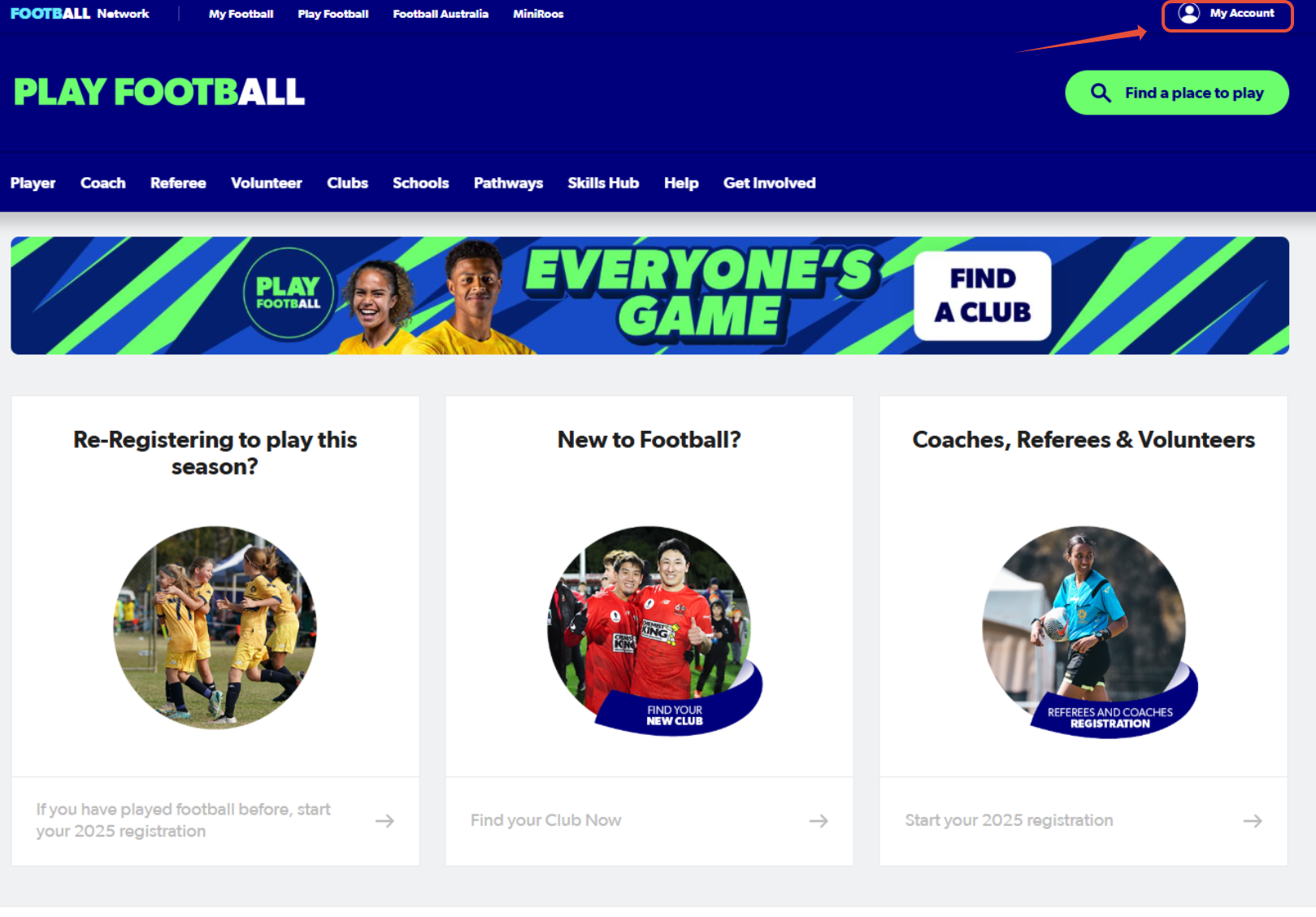
Once you sign in, your name will appear in the top-right hand corner. Please hover over your name and select, 'My Account' again.
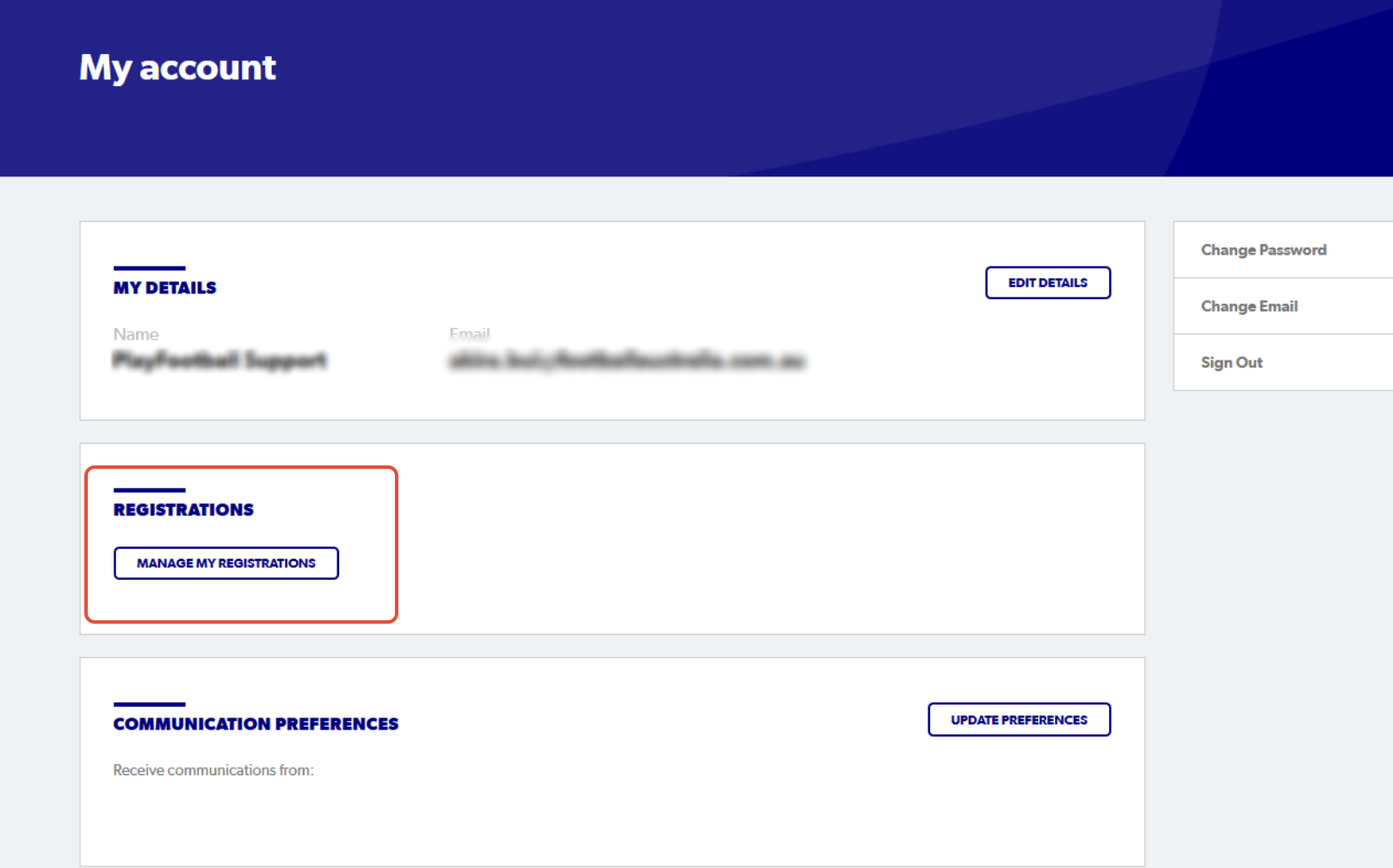
2. Select 'Manage My Registrations'
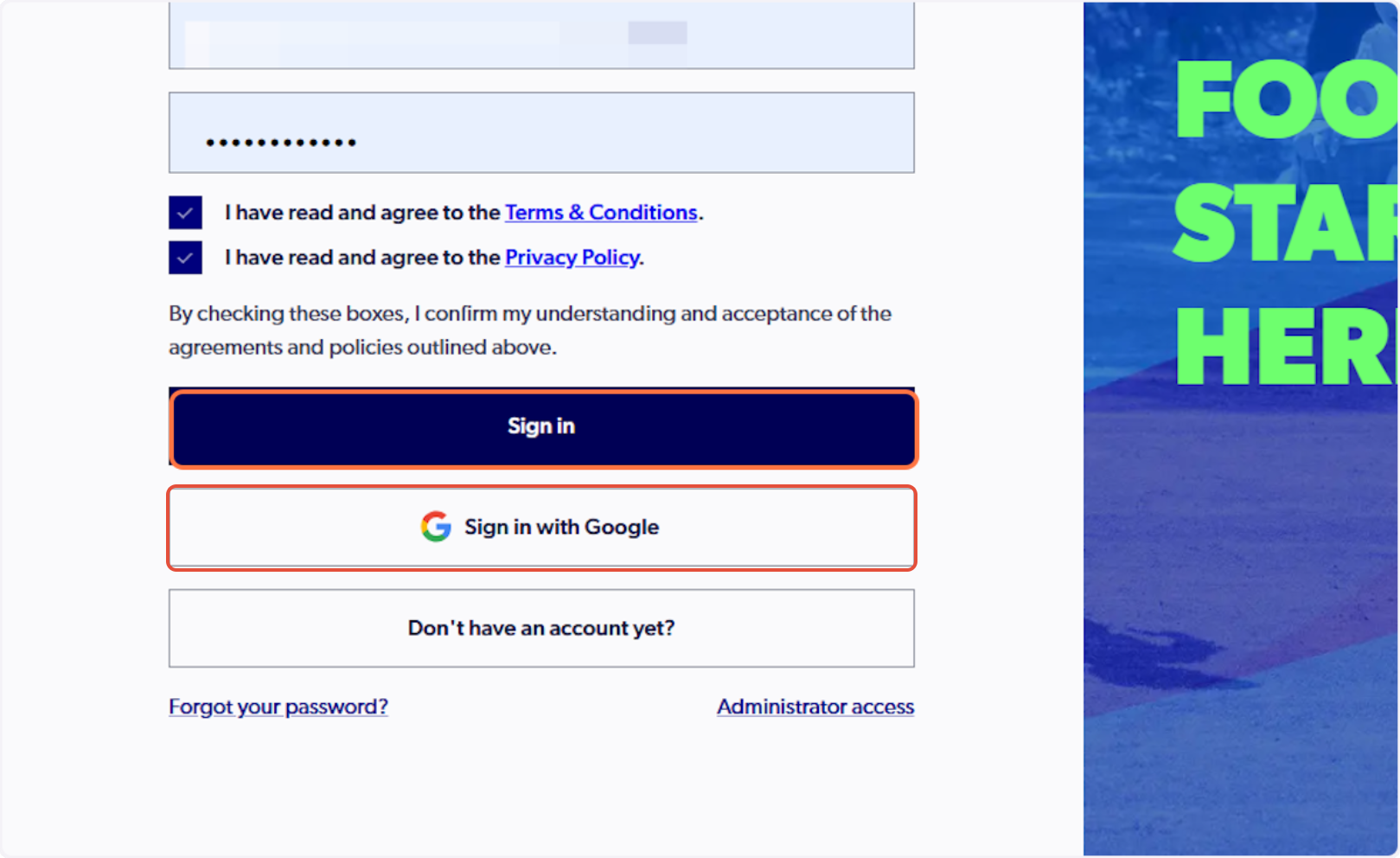
3. Sign in to PlayFootball
Please note: if you have created your account using Google, you must select 'Sign in with Google'
4. Click on Family Management

ℹ️ Select the dropdown on your family
5. Click on the participant that you would like to view or upload

6. Click on Supporting Documents

7. Here you will be able to view any previous WWCC or WWCC exemption that has been uploaded for this participant

* If you wish to request an exemption only, skip to step 10 *
8. To add a new working with children check, Click on "Add New WWCC"

9. You will then be able to complete all necessary fields and submit a WWCC for this participant

* If you have uploaded a WWCC for the participant, do not continue with the following steps. *
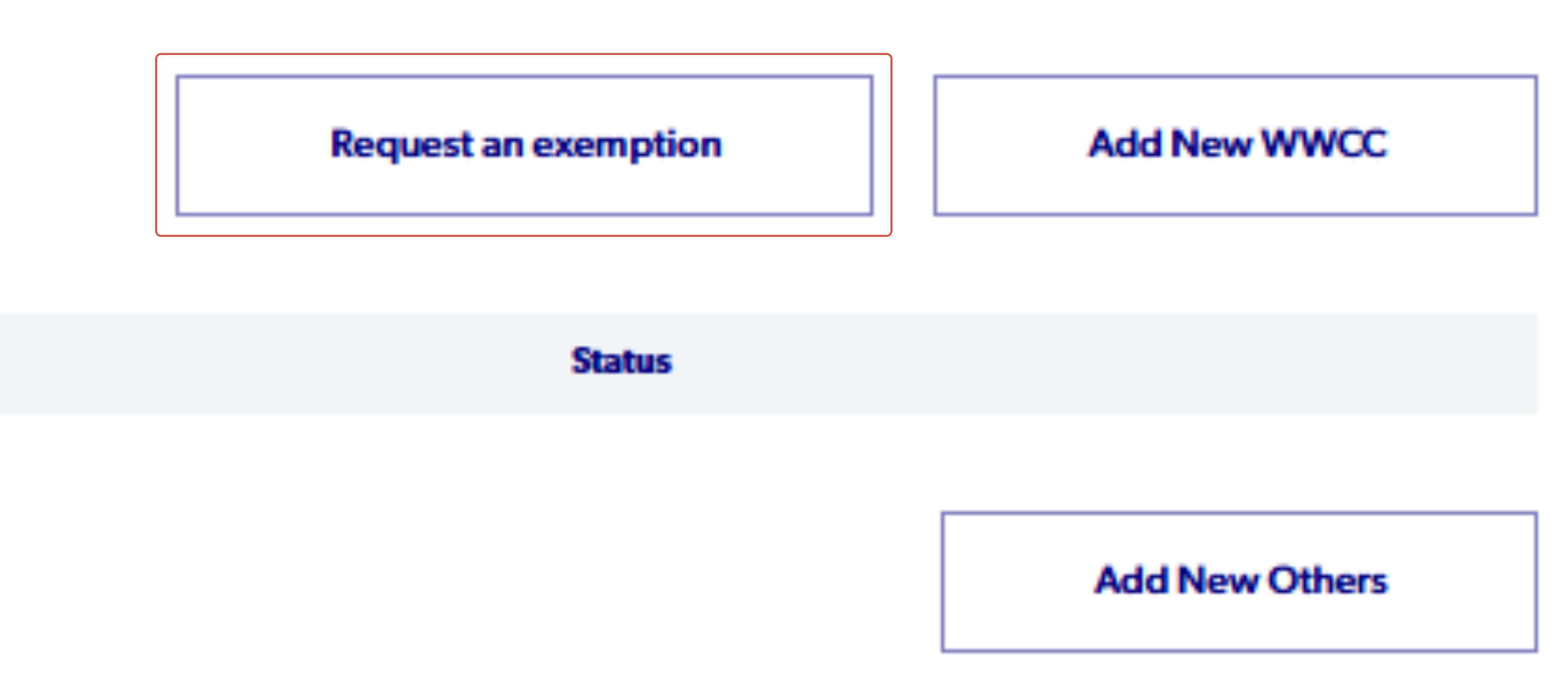
10. Click on 'Request an exemption'
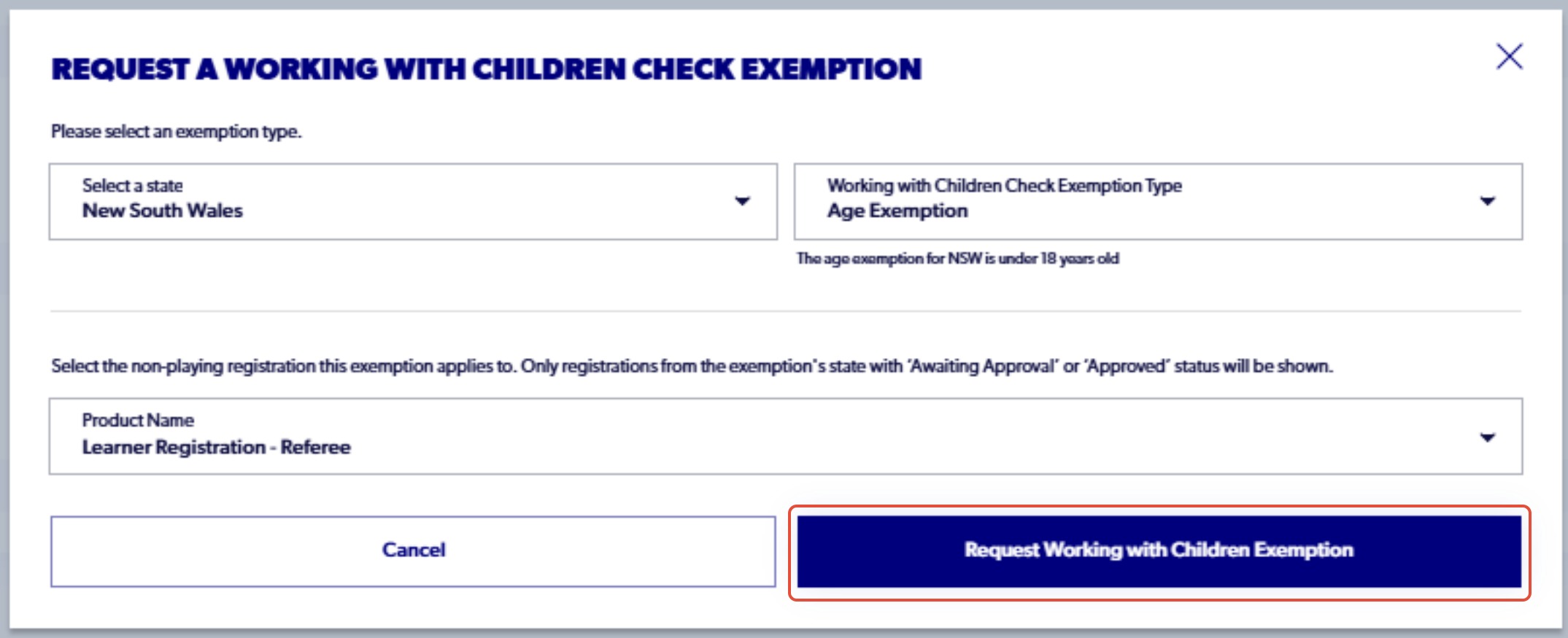
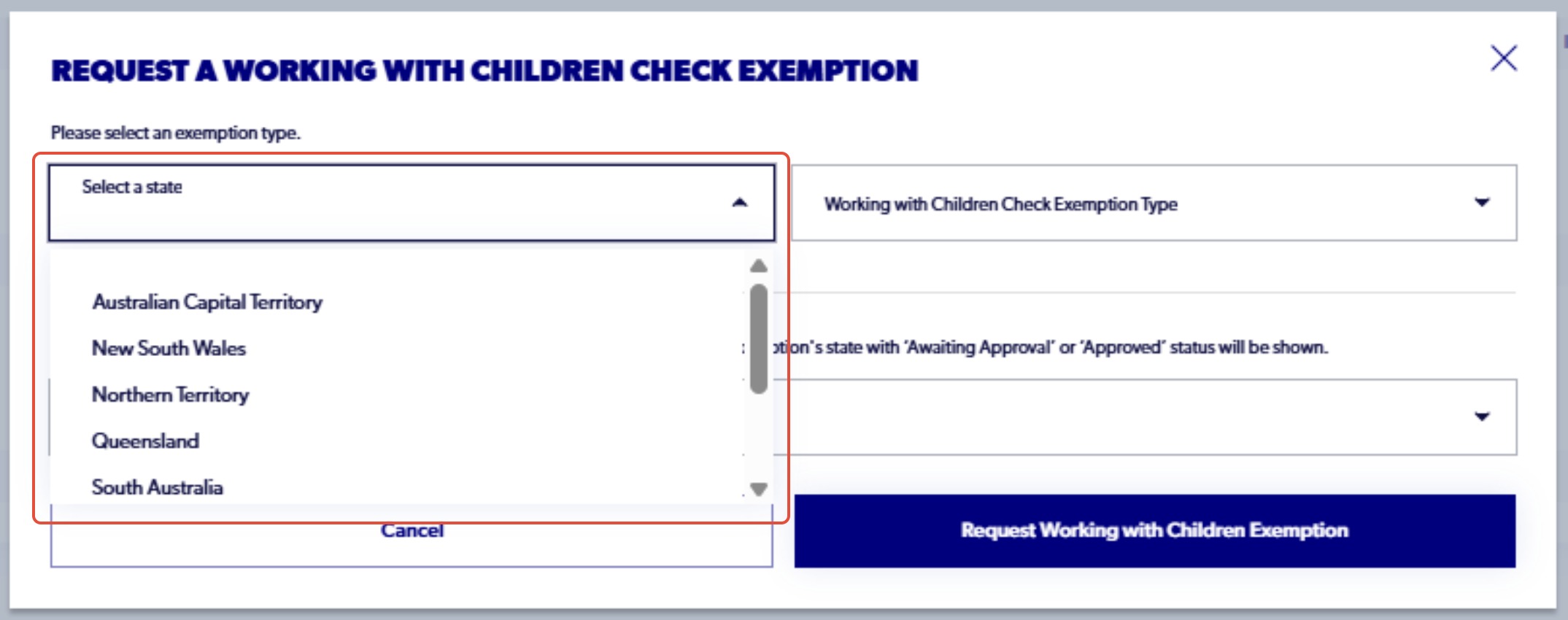
11. Click on 'Select a state' and choose the state your club is in
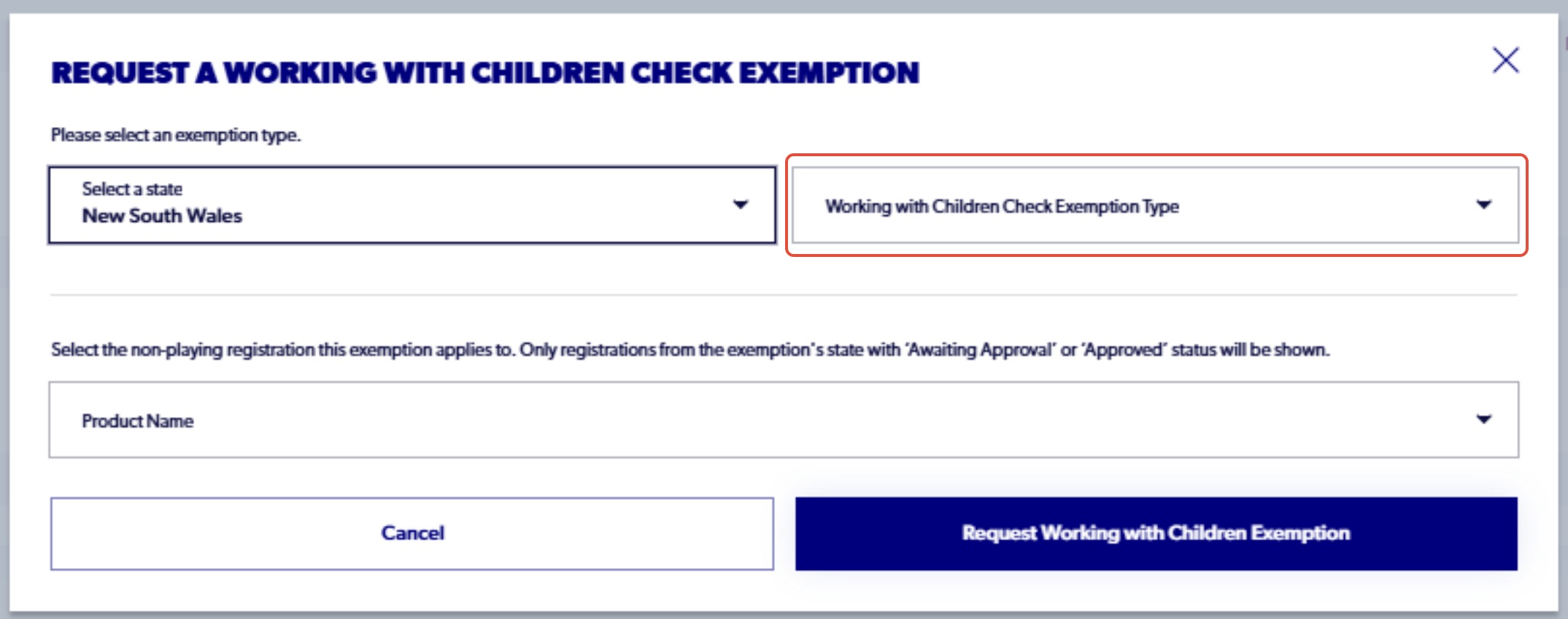
12. Click on Exemption type and select an option.
Each state has their own exemption options to choose from. Ensure that you are selecting your exemption type based on your eligibility.
The following is an article to each state'stes exemption list: Member Federation Exemption List
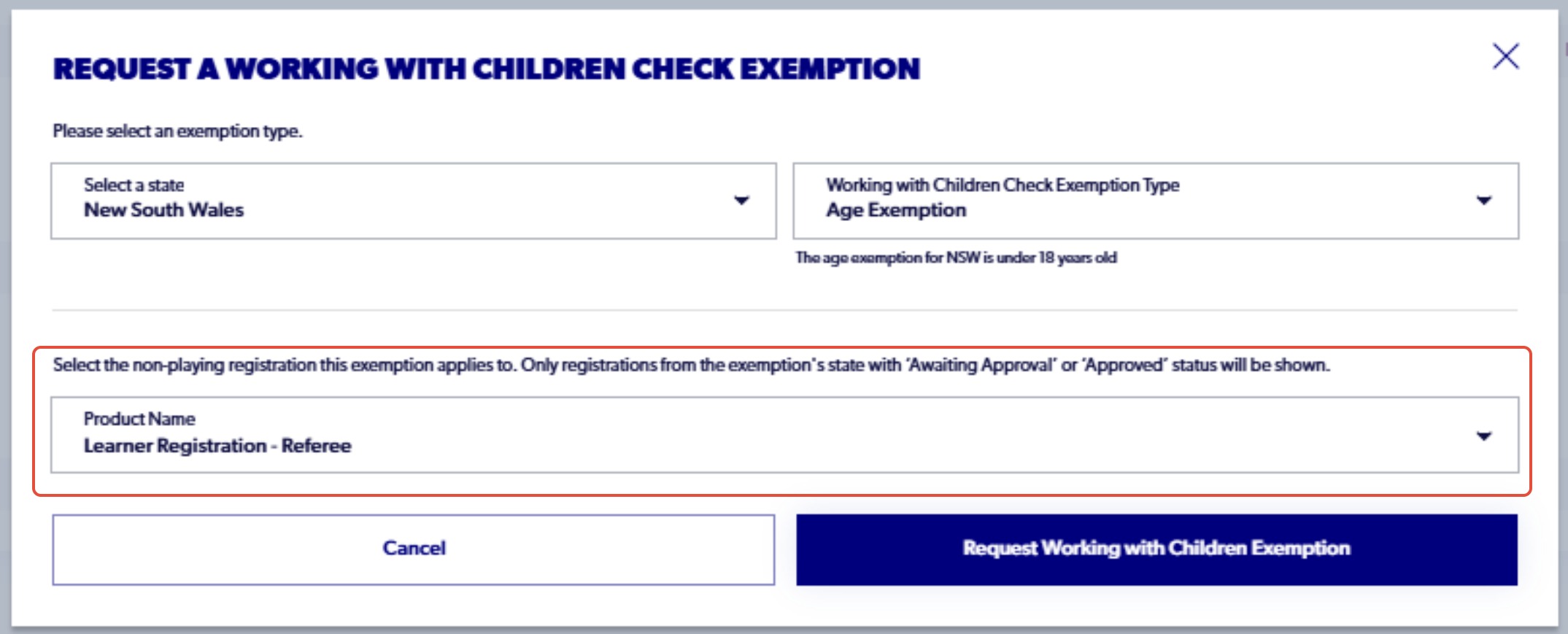
13. Click on Product Name and select the registration you would like to attach the exemption to
14. Click on 'Request Working with Children Exemption'
The club should then be able to approve the exemption and then the registration.